Read the connected context
Search Gmail, inspect messages, list Calendar events, find free time, and search or download relevant Drive files.
 ToyoRequest access
 Connect supported Google products per provider, then use their available read and write actions beside local files, browser research, and task state.
Work with connected Gmail, Calendar, Drive, and Maps through structured actions and write boundaries.
The desktop connects Google products independently. The visible status keeps cloud capability separate from the local workspace and makes reconnection or disconnection explicit.
Search Gmail, inspect messages, list Calendar events, find free time, and search or download relevant Drive files.
Create Gmail drafts, manage Calendar events, or create, upload, and update Drive files through structured actions.
Use configured Maps actions for geocoding, place details, and directions, then open directions separately in the visible browser.
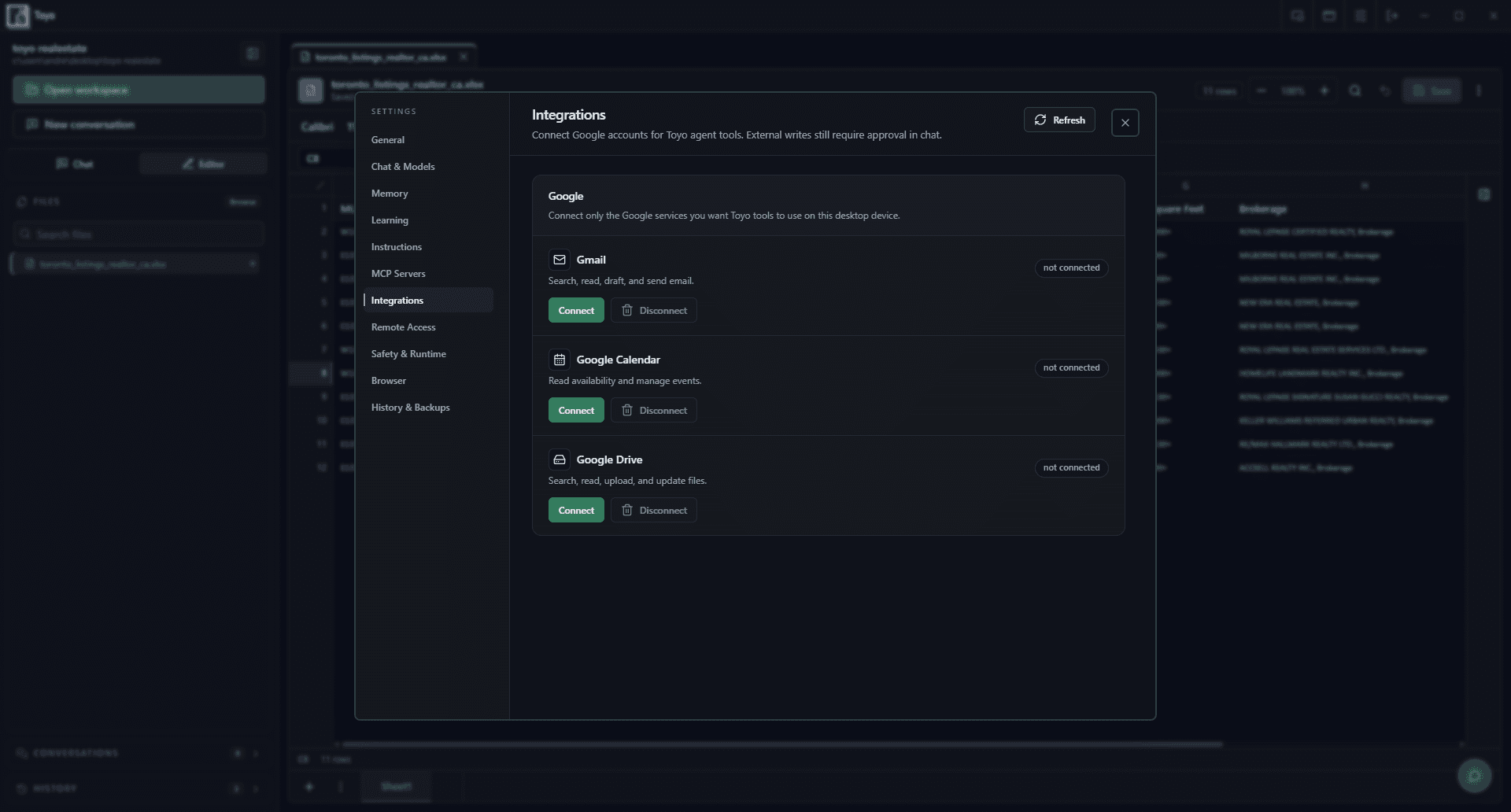
Connected Google actions expand the workflow without pretending external services are local or always available.
Authorize Gmail, Calendar, or Drive from Toyo's integrations settings; Maps depends on its configured provider path.
Ask Toyo to read or write through the connected product while the call remains visible in the transcript.
External writes require approval unless the user has explicitly enabled the Full access execution mode.